All functions of TuxGuitar can be accessed in the classical Pulldown Menu at the top of the main window. The most used functions are also accessible over two toolbars: The Main Toolbar just below the pulldown menu, and the Edit Toolbar on the left side of the main window. Many actions can also be accessed over Context Menus by right-clicking in the score, the tablature or the track table.
The Pulldown Menu
You know this kind of menu from many other desktop programs: Just click on the entries in the menu bar to unfold all the available menu items. Many items have the same graphical icon in front of the description as the function has in the toolbars. Keyboard shortcuts are shown after the text label. Pre-assigned shortcuts can be re-assigned according to your own preferences, and most unassigned options can be assigned via the Tools → Shortcuts menu.
The Context Menus
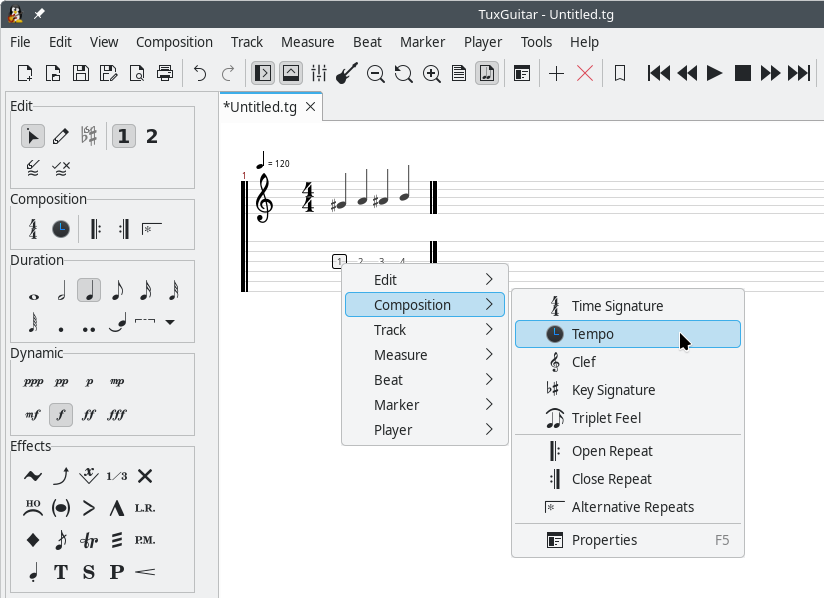
Right-clicking in the score or the tablature gives you quick access to the main entries to edit the track at the current position. The menu items are the same as in the pulldown menu.
When you right-click on a track in the track list on the bottom of the main window, you can directly call all functions from the Track pulldown menu.
The Toolbars
The Main Toolbar and the Edit Toolbar give you one-click access to some of the most used options in TuxGuitar. While they can be a bit intimidating, they are actually quite simple when you break them down and can save you a lot of time with some of the more common tasks associated with tablature editing.
Both bars can be enabled and disabled by clicking on the menu items Show Main Toolbar and Show Edit Toolbar in the View menu.
The Main Toolbar is divided into three areas: left, center and right. By default, the left area contains the usual file, edit and view functions, the center area is used for playback, and the right area only contains the Customize Main Toolbar button. Using this button or the corresponging menu entry in the "View" menu, each area can be customized individually:
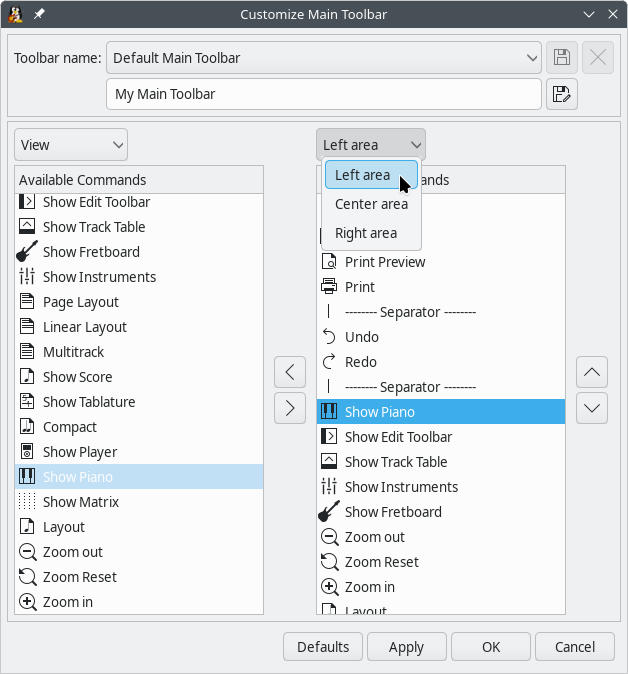
The left column in this configuration window lists all commands available in TuxGuitar, while the right column shows the commands assigned to the three areas. Use the arrow keys between the two columns to add or remove a command from the selected area. You can also save the customized toolbar under a custom name.